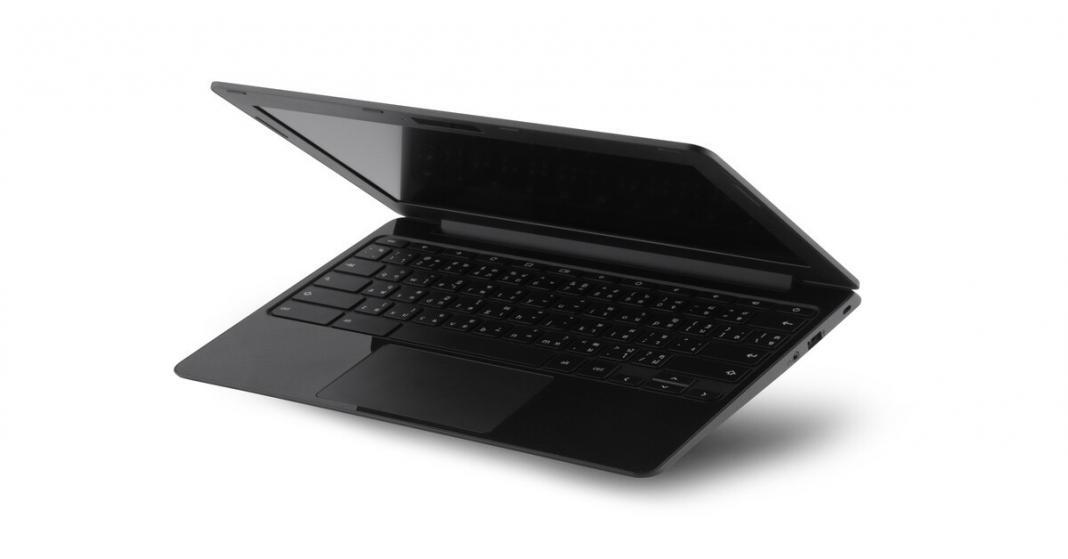
A Chromebook can look simple on the surface: a clean desktop, a browser, and not much fuss. That simplicity becomes the point once you shape it around your day. A few smart tweaks can cut down on repetitive clicks, keep distractions in check, and help you move from task to task without losing momentum. If you use your Chromebook for work, school, errands, and entertainment, you can make it feel faster and more personal in under an hour—and then keep benefiting every time you open the lid. Continue reading to explore Chromebook tips that make daily tasks easier.
Pin the Tools You Touch Every Day
Start with the shelf. Treat it like a command center, not a random parking lot. Pin the apps and sites you open daily, then keep the rest out of sight. Right-click any app in the launcher and pin it, then drag icons into the order your brain expects. Put your browser first, messaging next, then calendar, notes, and music. That simple sequence reduces friction more than any fancy tweak.
If you live in web apps, pin specific sites as standalone windows. Open the site in Chrome, go to the three-dot menu, then choose the option that creates a shortcut and opens it as a window. You’ll get a cleaner, app-like experience, plus faster switching when you juggle multiple tasks.
Master the Tab Life
Tabs can help you multitask, and tabs can also bury you. Use tab groups when you work across multiple projects. Create a group for work, one for personal tasks, and one for reference. Name them clearly, and pick colors that match the categories. When you bounce between tasks, you’ll stop scanning a sea of tiny favicons and start moving with intent.
When you hit tab overload, use a simple reset. Bookmark all tabs into a new folder, close the window, then reopen what you actually need. You’ll clear clutter while keeping a safety net for anything you might revisit later.
Also, give yourself a “one window rule” for deep work. Keep one window for the main task, then open a second window only for support materials. That structure keeps your focus in one place and reduces impulsive tab hopping.
Let Virtual Desktops Do the Heavy Lifting
Desks—Chromebook’s virtual desktops—can change your daily workflow fast. Use one desk for focused work and another for communication. Keep email, chat, and calendar on the second desk so you can check messages without scattering distractions across your main workspace.
Create desks for recurring modes, too. A “Finance” desk can hold banking, budgets, invoices, and receipts. A “School” desk can hold class tabs, PDFs, and assignments. Once you build a few desks that match your life, you’ll stop rebuilding your workspace every morning.
Use keyboard shortcuts to switch desks quickly, then train your muscle memory. Your Chromebook will feel more like a tuned workstation and less like a floating pile of windows.
Snip, Capture, and Share
Screenshots can solve problems in seconds: showing an error, sharing an idea, saving a receipt, or capturing a schedule. Learn the screenshot tool and use it for a purpose. Take partial screenshots for clarity, then annotate when needed.
Screen recording can also make life easier. If you need to explain a process to a coworker or classmate, record the steps once instead of typing a long message. You’ll communicate faster and avoid confusion.
Keep your captures organized by moving important ones into a dedicated folder in Files. Give them clear names immediately. A screenshot called “Screenshot 2026-02-06” never helps later.
Make the Files App Work for You
The Files app can feel basic until you set up a structure that matches your habits. Create top-level folders for Work, Personal, School, and Admin. Keep a Receipts folder inside Admin, then add subfolders for each year. When you need a warranty, a bill, or a reimbursement form, you’ll find it instantly.
Turn on offline access for Google Drive folders you use often, especially if you work on the go. You can open and edit without a stable connection, then sync later.
Take advantage of search inside Files. Search by file type when you hunt for a PDF or image. If you keep names descriptive, the search becomes almost effortless.
Smart Keyboard Tricks
A Chromebook rewards keyboard habits. Learn a handful of shortcuts and use them until they become automatic. The goal isn’t to memorize a hundred commands; it’s to cut out the slow motions you repeat all day.
Use quick switching between apps and windows, and lean on the Overview key for a fast visual layout when you feel lost. When you combine Overview with desks, you can handle multiple tasks without mental clutter.
Use the Launcher key as a search bar. Type an app name, a setting, or a file name and jump straight to it. That single habit can replace aimless clicking through menus.
Clean Up Notifications
Notifications can help, but they can also hijack your attention. Open settings and decide what deserves interruptions. Keep calendar alerts and critical messaging. Silence everything else. You can still check updates on your schedule.
Set Focus mode when you need a quiet block of time. Pick a duration, choose whether you want ambient sound, and keep distractions out of your line of sight. A short focus sprint can power through chores like email cleanup or document formatting without friction.
Make Setup Feel Personal
A Chromebook can feel generic until you tune it. Adjust your touchpad speed and scrolling direction so the device moves the way your hands expect. Set your display scaling so text looks crisp without forcing you to squint. Choose a wallpaper that feels calm instead of loud, because you will look at it constantly.
If you use external monitors, set a predictable layout and keep it consistent. Your brain learns where things go. That small consistency reduces mental fatigue across a long day.
And don’t ignore accessibility tools. Dictation can help you draft emails faster. Select-to-speak can help with proofreading. Even if you don’t need accessibility features daily, they can speed up specific tasks.
Keep Your Chromebook Fast With Simple Habits
Chromebooks generally stay snappy, but habits still matter. Restart occasionally. Clear out extensions you don’t use. Extensions can pile up quietly and slow down browsing, especially the ones that run constantly in the background.
Review apps you installed “just to try.” Remove anything you don’t use. A lean setup feels better and reduces clutter in the launcher.
If a site acts weird, troubleshoot in a clean way: close the tab, reopen, then try incognito to test whether an extension causes the problem. That approach saves time and avoids random guesswork.
Use Overlooked Features
Some of the biggest wins come from features people overlook. Phone Hub can connect your Android phone for notifications, hotspot access, and quick actions. Nearby Share can move files between devices without email chains. Clipboard history can save multiple copied items, so you don’t lose that address, quote, or snippet.
These belong in the category of must-use Chromebook features because they remove tiny daily annoyances that add up. Once you start using clipboard history, for example, you’ll wonder how you ever juggled one copied item at a time.
If you work across devices, add these tools early. They create smoother handoffs, and smoother handoffs create a calmer day.
Make Google Assistant and Search Do More
Use Assistant for quick actions, timers, reminders, and simple calculations. Use Chrome’s address bar as a multi-tool, too. You can search the web, jump to a site, convert units, and do math without opening extra pages.
When you treat the launcher and address bar like fast control panels, you stop hunting for the right place to click. You just type and move on.
Your Chromebook Can Feel Effortless Every Day
Your Chromebook can feel effortless once you shape it around how you actually work. When you pin the tools you use most, tame tabs, lean on desks, and cut noisy notifications, the device starts working with you instead of competing for attention. Add a simple file structure, a few keyboard habits, and the small conveniences that speed up handoffs, and you’ll notice the difference every single day. Take a few minutes to set up your Chromebook in a way that will make daily tasks easier, and you’ll spend less time clicking around and more time getting things done. You’ll be happy you did.
You may also like to read,